Be there for the conversation.
Record microphone and computer audio on Mac. On your phone or in the browser, record your microphone or import audio you already have.
 Cadence
Open app
MORE CONVERSATION. LESS NOTE-TAKING.
Stay in the conversation. Cadence records it, transcribes it,
and helps you find the exact moment you need later.
Mac · Windows · iPhone & iPad · Android · Web
“Where did we land
after Tuesday?”
FROM “I THINK THEY SAID…” TO THE EXACT WORDS.
From the first hello to the follow-up, keep the details close.
Record microphone and computer audio on Mac. On your phone or in the browser, record your microphone or import audio you already have.
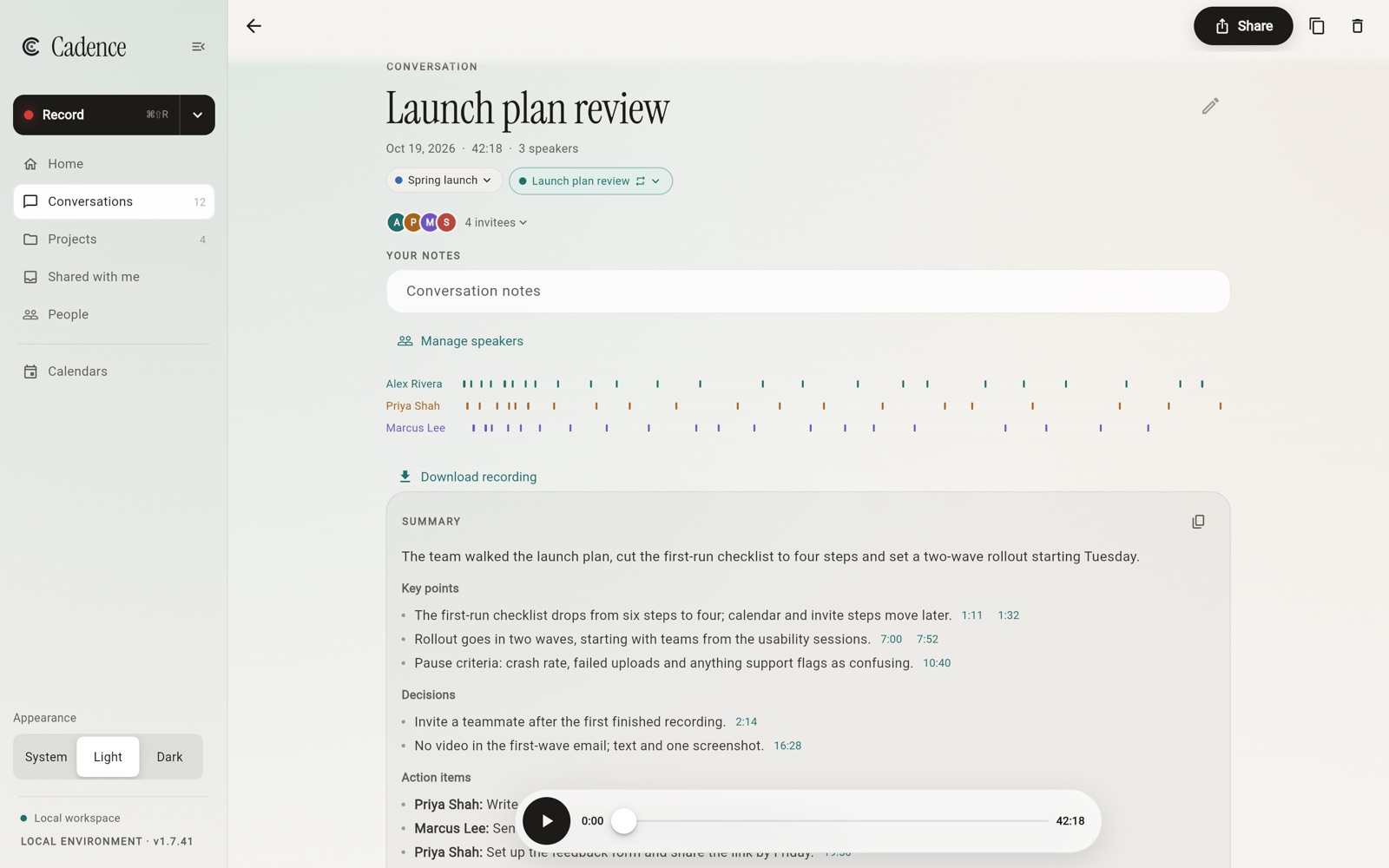
Get a transcript with speaker labels and timestamps after recording, plus a short summary. Name the speakers, organize meetings into projects, and correct a passage when it needs a second look.
Search across your library, a project, or one meeting. Open the original passage and jump to its timestamp to hear the surrounding conversation.
BEFORE, DURING AND AFTER.
Prepare for it, catch up on it, and pass it on.
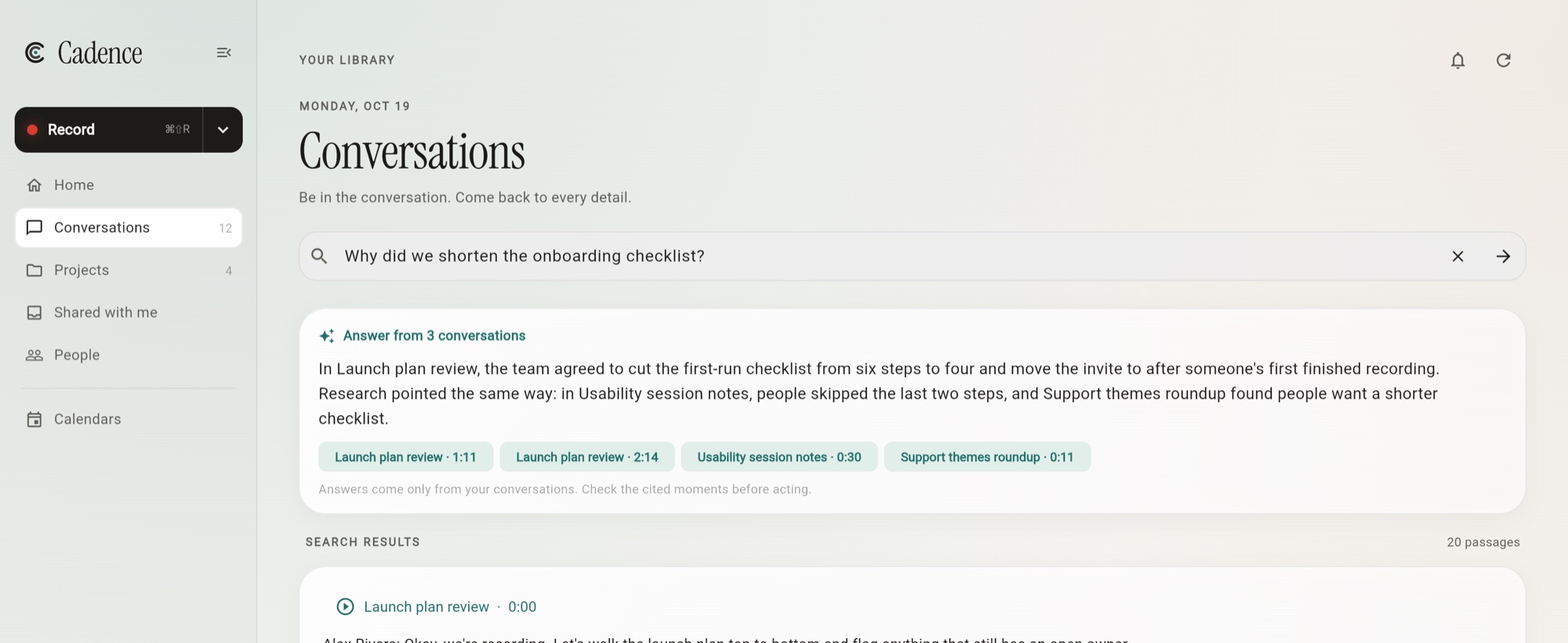
Type a question into search and Cadence answers from your conversations, naming the meetings it drew on. Each citation opens the exact passage, ready to play.
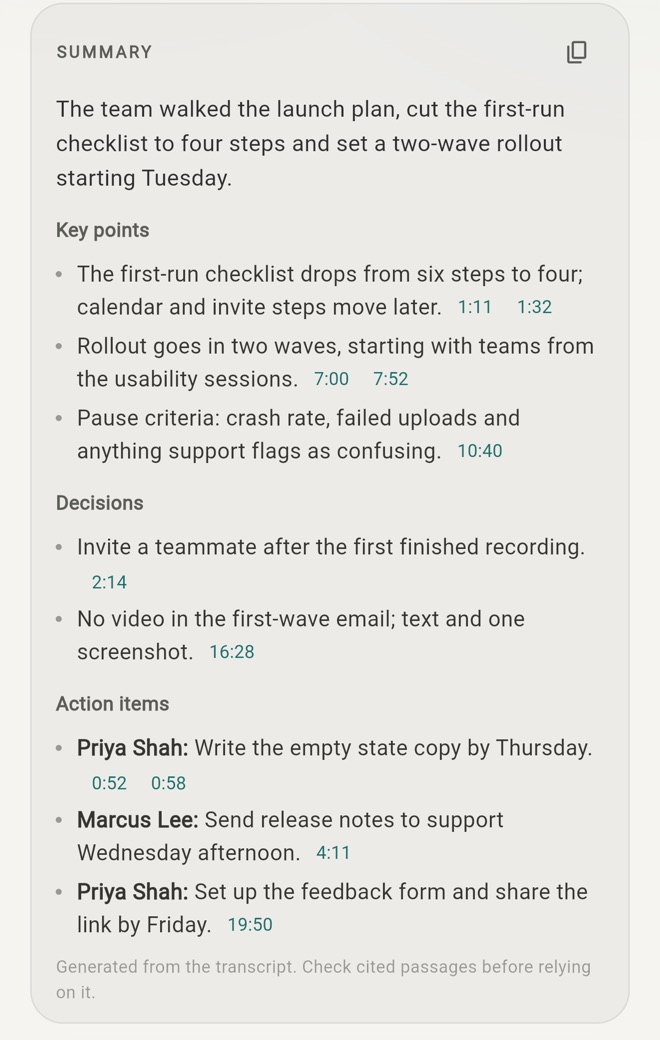
Each transcript comes with a brief recap, key points, decisions and action items. Every point links to the moment it came from, so you can check it in a tap.
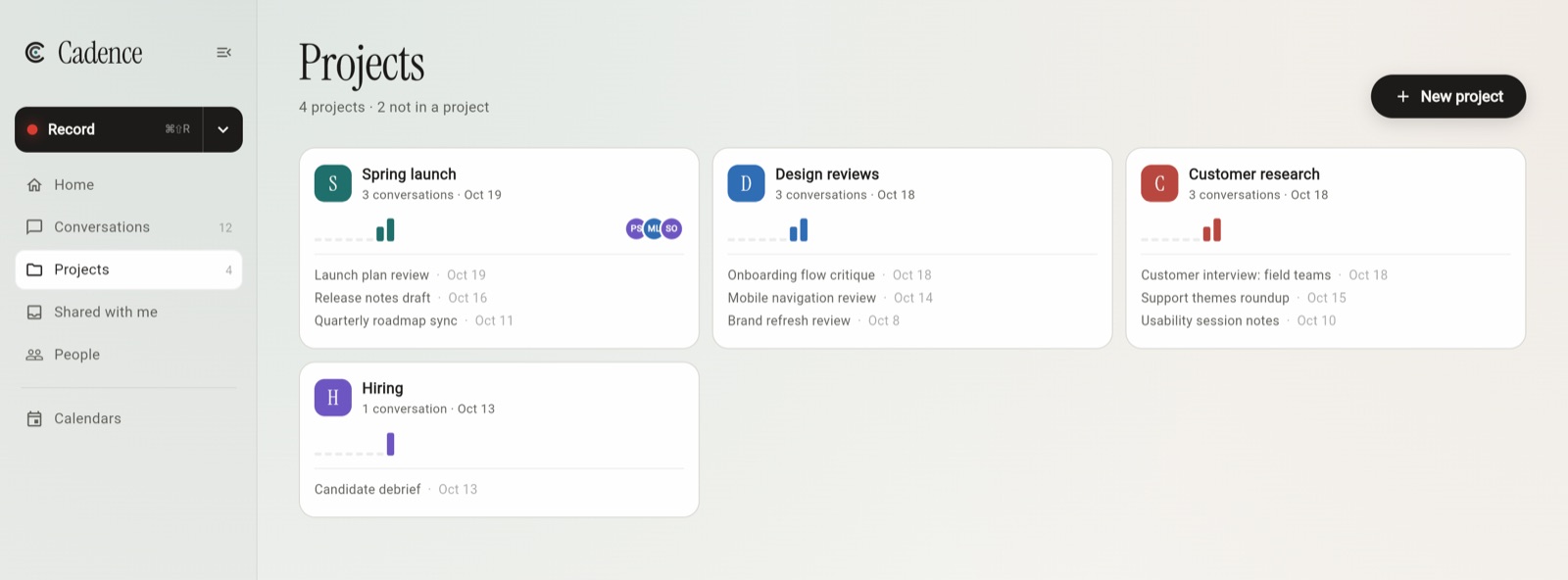
Group conversations into projects and see each one at a glance: recent meetings, how busy it’s been, and who’s involved. Inside, browse its conversations, recurring series and people, search just that project, or share the whole thing with your team.
Connect Google Calendar or Outlook to see what’s coming up, write prep notes, and get a reminder to join and record. Recordings take the meeting’s title, and recurring meetings stay together as a series.
Read-only. Cadence never starts recording on its own.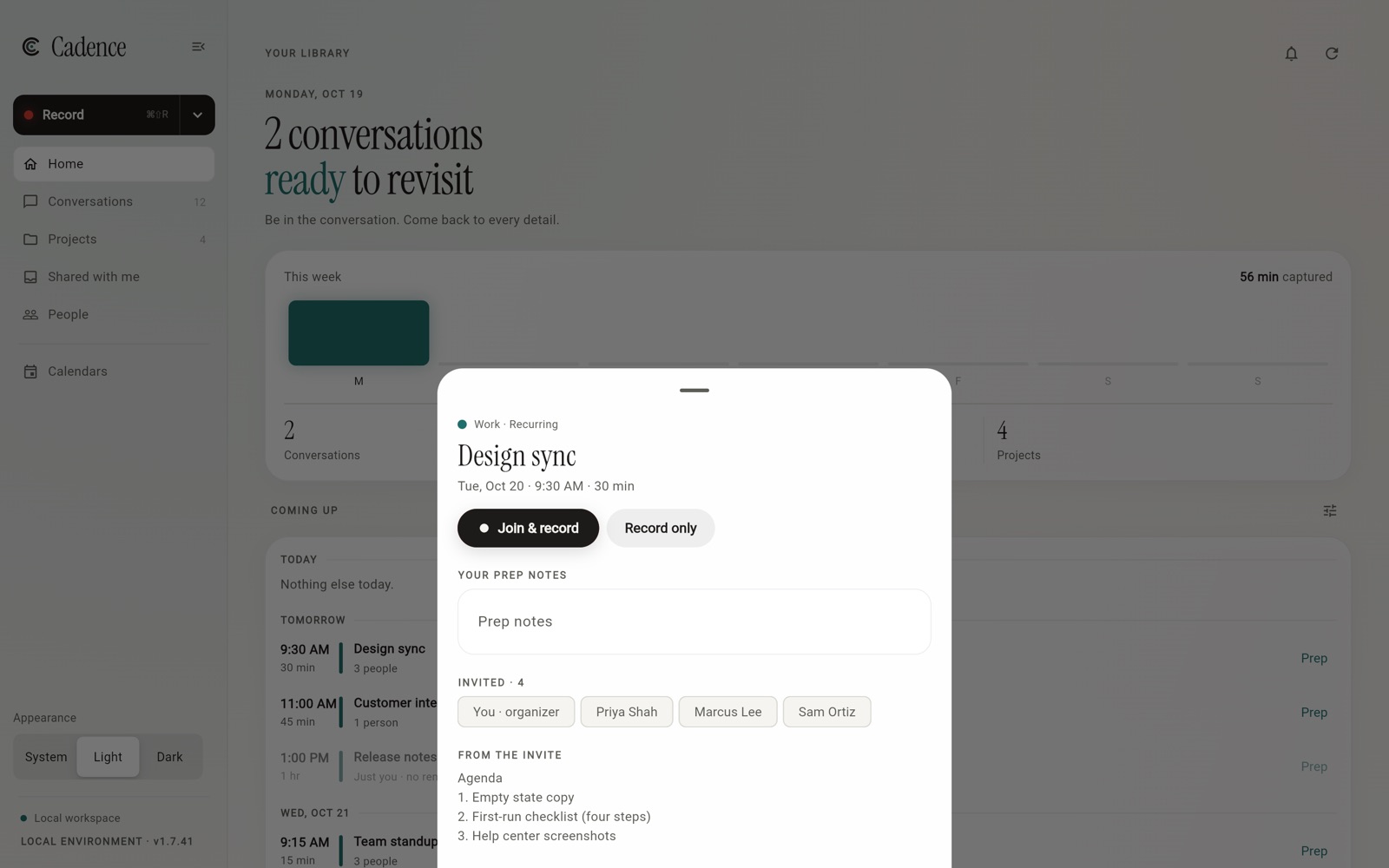
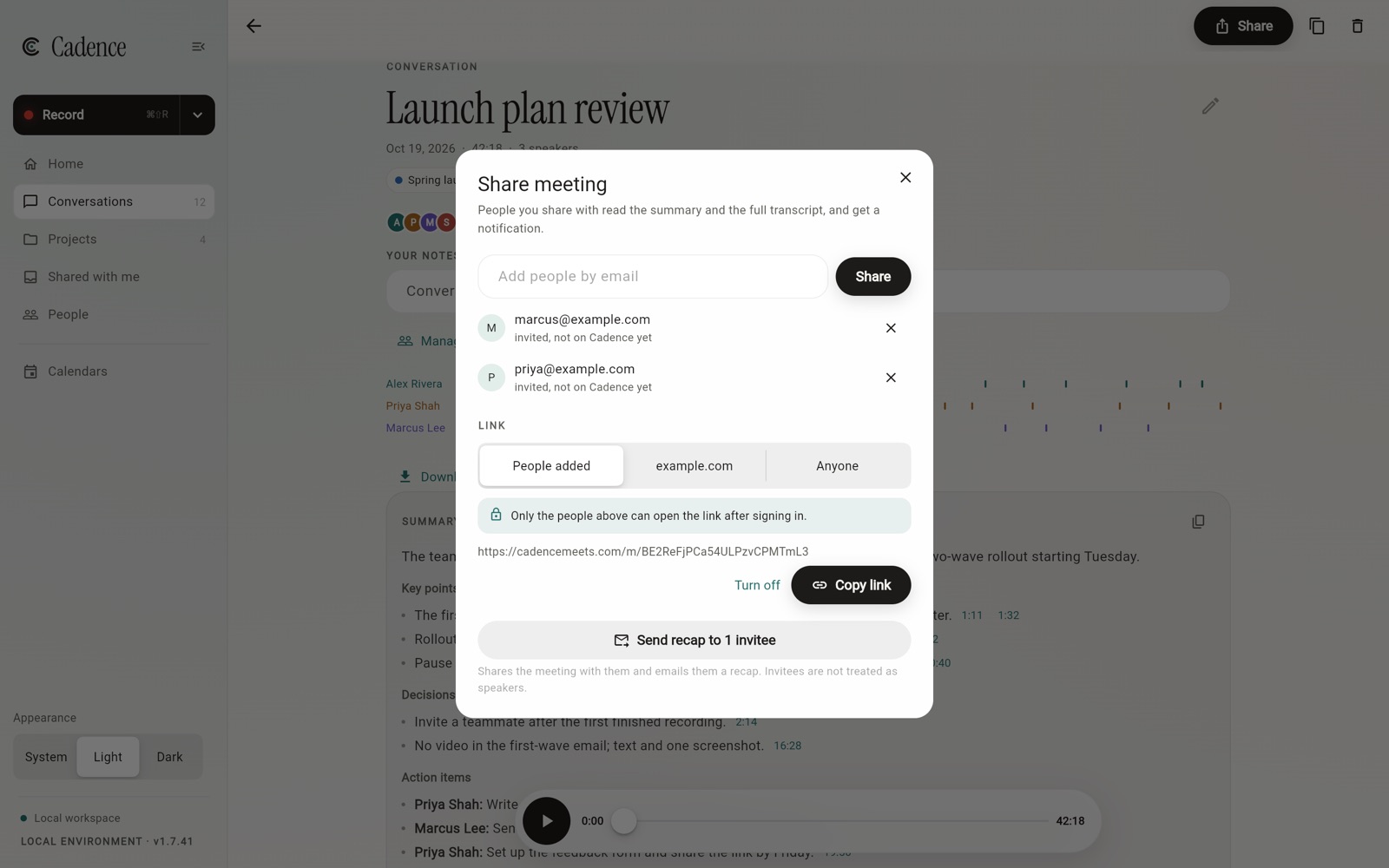
Share a meeting or a whole project. People get the summary and full transcript, with an email recap and an alert. Keep the link to the people you added, open it to your company, or to anyone. Audio always stays behind sign-in.
Recording has its own page on Mac, iPad and the web, with a notes column that stamps each line with the time you wrote it.
Name speakers from the meeting’s invite list. Then open a person to see when you last met, and search only their words.
Turn a summary into a follow-up email to the invitees, ready in your mail app. Cadence never sends it for you.
YOUR MEETINGS, IN YOUR AI WORKFLOW.
Connect Cadence to your assistant through MCP. Ask about your meetings and get the original words, speaker labels, and timestamps to check the answer.
Read-only access. Your account. Your choice.
Here’s the passage to check in the launch-plan review.
“The new welcome screen is ready. We just need the copy review on the first-run checklist.”
Marcus Lee · 0:31Answers depend on your assistant. Cadence provides the evidence.
A PLACE FOR EVERY CONVERSATION.
At your desk, on the go, or already in your browser.
A desktop recorder for your microphone and computer audio. On Mac, it lives in the menu bar with meeting reminders.
Get it on the Mac App Store Download for Mac without the App Store Download for Windows macOS 15+ · Windows 10 or 11Record a conversation or bring along audio you already have.
Download on the App Store One library across your devicesYour pocket recorder, with transcripts ready to revisit.
Get it on Google Play Microphone recording & audio importsSearch, listen, import, and record your microphone in the browser.
Open Cadence in your browser No download neededSign in with the same verified account to access your library. Browser recording needs the tab open until upload finishes.
ADD YOUR MEETING MEMORY.
Choose a setup guide, connect your account, and start asking.
Cadence is in ChatGPT’s plugin directory. Claude and Codex use custom connections where your assistant and workspace allow them.
PERSONAL BY DESIGN.
Recordings and transcripts belong to your account. Connect an assistant only when you want it to retrieve meeting evidence. Its Cadence connection can read your meetings; it cannot edit or delete them. Calendar access is read-only and optional: Cadence never records on its own, and you can disconnect at any time.
We use self-hosted Umami analytics on this public website. Some visits include a masked replay of clicks and scrolling for up to five minutes. Text is masked and form inputs are blocked. Recordings, transcripts and activity inside the app are excluded. Turn off site analytics in the footer, or enable Do Not Track.
Read our privacy noticeROOM FOR EVERY CONVERSATION.
$0
Two hours of transcription every week.
The same final transcription model. Projects, search and your assistant connection included. Cloud audio kept for 30 days after transcription.
Start freeFOR YOUR WORK.
$14 USD/month
Or $134.40 USD/year. Save 20% — equivalent to $11.20/month.
Unlimited transcription for individual use. Keep cloud audio while subscribed, with 30 days to download after paid access ends.
Get ProLet's talk
Everything in Pro for your whole organization, plus:
Auto-renews until canceled. Taxes and regional store prices may vary. Subscription details & fair use.
A FEW GOOD QUESTIONS.
No meeting bot is needed. On Mac, Cadence captures microphone and computer audio with your permission. Phones and the browser record microphone audio. Let participants know and get the permissions needed for your conversation.
Yes. Use microphone recording on your phone, Mac, or in the browser, or import an existing audio file. Recording quality depends on the room, microphone, and how clearly everyone can be heard.
Choose your assistant in the setup section above. In ChatGPT, add the Cadence plugin
from the plugin directory and sign in with your Cadence account. Claude and Codex use
a custom MCP connection to
https://cadencemeets.com/mcp with browser sign-in.
Setup availability depends on your assistant and workspace.
Google Calendar and Microsoft Outlook, including personal, work and school accounts. Access is read-only. Some work accounts need an administrator to approve Cadence before you can connect. Cadence never starts recording from your calendar.
Meetings stay private until you share them. People you share with read the summary and full transcript; you choose whether a link works only for them, your company, or anyone. Audio is only available after sign-in, and you can turn a link off at any time.
Yes. Open a meeting and select a transcript timestamp to jump to that moment in the recording. AI-generated words and speaker labels can be wrong, so listen and check the surrounding context when a detail matters.
Watch recording is in development and device testing. The phone and desktop apps are the current starting points; watch transfer and background capture are still being verified.
MAKE ROOM FOR THE MOMENT.